Yesterday, we were able to test and set up a critter cam in the sun room!
This is the camera that was given to us.
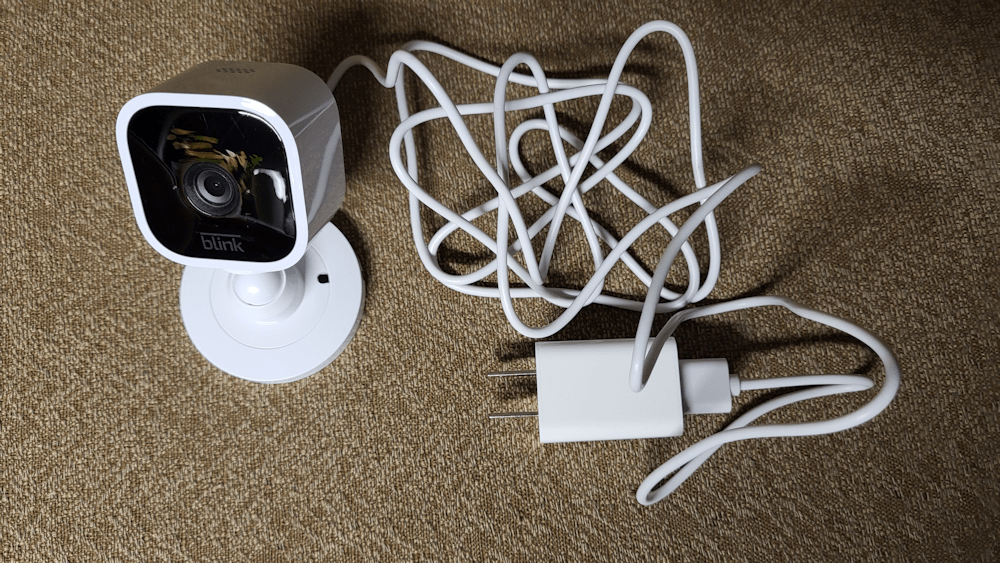
It is a Blink Mini, and it’s really basic! You’ve got the camera and its mount, a USB cable, and an adapter. There are also mounting screws.
I tested it out in the house. I had to download an app, first, and start a new account. Once the app was connected to wifi, there were some blue and green lights, with one of them blinking. The instructions said to press and hold the reset button until a red light started blinking. The reset button was hard to see, and very tiny. I ended up using the tip of a pair of sewing scissors I had handy to press the button. After that, the red light started flashing, then it reset to the blue and green lights, and that was it. I could then use the live feed on my phone and see what the camera could see.

The camera ended up on a shelf in the sun room, next to some stored mouse traps we don’t need, thanks to having so many yard cats. I used some Alien Tape to secure it, since the mounting screws could not be used here. That cable is supposed to go through an opening in the mounting plate, instead of sticking out like that, but I didn’t bother. The cable is secured to the shelf in such a way that there are no dangling bits to tempt the cats, and plugged into the same extension cord the heated water bowl is plugged into. I could then use my phone to see, and adjust the angle of the camera until I was satisfied.
On starting a new account, the app immediately activates a 30 day free trial for unlimited cloud storage. Currently, it seems there is no other storage option. I’ll get to that, later on.
There is a motion detector, and there is the option to have it start recording if it detects motion. The shortest length of time for a clip is 10 seconds. I tested that out, but quickly turned it off. There is just too much cat activity, and I was getting notifications of recordings even as I was in the process of setting things up. I might decide to turn it on for the night, then off during the day, but that’s about it.
After setting it up and testing it out, I left the sun room and started looking up different things about the camera. It seems there is no desktop version of the app, which is frustrating for me. While I was doing that, I opened the app to see the live feed, and discovered racoons in the sun room! Though I’d shut off the motion sensor recording, for some reason it did record several clips, including one of them running off as I entered the old kitchen and started opening the door to the sun room. I saw four big fluffy racoons running off! What I don’t know is why it was recording, why it continued to record a couple more times, and then stopped. I’m sure there’s some setting somewhere that I’m not finding. Whatever it is, it’s not automatically recording anymore, though it does allow for manual recording. Or, more specifically, is has a “save to cloud” button. I haven’t quite gotten to seeing what it saves when you tap that button.
Among the things I like about it:
It has a good, wide angle view of 110°. Even though the camera is set up near the door in the middle of the room, it can cover the entire half of the sun room we’ve set up for the cats. I adjusted it so that it covers the doors to outside and more of the floor. I might lower it a touch more so that the heated water bowl is in view.
It also has really good infrared. I’ve got the shop lights set up to turn on after dusk, if the motion sensors are activated, so the room does get lit up frequently at night. I have them set as dim as they go, but at night, it still feels really bright. Once the lights shut off, though, I can still see the entire room clearly. In fact, it’s slightly better without the glare of the shop lights.
It picks up sound very well. It even picks up sounds from the old kitchen!
It has a two way talk option. I can tap and hold a button and use my phone’s microphone to talk to someone in the room.
Or maybe talk to the cats.
Or use it to shoo away racoons?
It should be interesting to test how that works on them.
Things I don’t like about it:
There’s no option to save or download a clip to device. I ended up having to watch the clip with the racoons on my phone and use screen record to capture the video. Perhaps if I had a subscription, there’d be a way to access the cloud storage for download, but that leads me to my other issue with it.
I don’t like cloud storage. I certainly don’t want to pay for a subscription. I’d rather have the option to store on my own device. In what I read while setting it up, there was mention of non-cloud storage that can be used, but that would require buying a local storage module, and I’m not quite sure there is one available for this specific model of the Mini.
Now, without a subscription, there is still cloud storage, but with a 7,200 second limit. If you exceed that limit, older clips get deleted and new ones saved. You can also set it to delete all clips after a certain length of time, with 3 days being the shortest. With how many cats – and racoons – we have going in and out of the, plus our own daily activities, we’d exceed that 7,200 second limit very quickly.
Now, we would mostly be using it for the live feed, anyhow, which leads me to my next frustration.
“Blink” is well named.
While working on this blog post, for example, I had the live feed set up and running. The sound would blink out, the screen would freeze and restart and eventually it would simply stop sending a live feed and I’d have to start it again.
I thought maybe it was our Wi-Fi signal flickering. Different parts of the house have issues with Wi-Fi, even with the booster my husband got. Nope. It turns out that you need a subscription for the Extended Live Feed. Otherwise, it wants you to touch the screen every 60 seconds, and the live feed stops after 5 minutes.
So what is involved in getting a subscription?
Enter one more frustration.
The app wants me to link to my Amazon account. That’s where one would go to buy a subscription. The problem is, it takes me to Amazon.com I opened an Amazon account many years ago, mistakenly using .com instead of .ca and it’s a pain in the butt. Particularly since I opened the account to create a shop for my sadly neglected craft blog. I was eventually able to add .ca to my account, but the default is .com. The default region is also US, and it does not like me switching it to Canada. My husband has a Prime account on Amazon.ca, so we just use that. I don’t like to use Amazon if I don’t have to, but it’s his account that I go to when I log on.
The app logs me into my old .com account. Once there, it does not let me switch to Canada, or use .ca
I’m not about to go through all this with the US dollar and my account insisting I’m in the US, even though everything else says I’m in Canada. It won’t let me switch to my husband’s account, either.
In the end, none of that matters much. We only have it there so we can check in on the sun room.
As for that one video clip I got that I actually wanted to keep, I got the screen recording from my phone and uploaded it to my desktop. The image quality suffers, of course, but it did let me see what was going on in the sun room before I got into the old kitchen.
It also allowed me to see that there was not only 4 racoons in there.
On first reviewing the clip on my phone, I spotted a 5th one that was out of my field of vision, dashing into the shelf by the window.
After watching the clip on my desktop, over and over, I realized there were actually 8 racoons. Possibly 9. There was one that never actually entered the sun room, but I just saw its face peeking in through the opening of the door.
Another reason I want to lower the camera’s angle a little bit. Part of the reason I’m not sure if it was 8 or 9 is because at least one, maybe two, disappeared out of view below the camera.
[Note: I just watched it again with my daughter and confirmed it was 8]
Final thoughts:
In the end, all we want out of a critter cam is to be able to check the live feed and see what’s going on. Being able to talk through the camera or make limited video recordings is just bonus. While I’d much prefer to be able to download individual files to my device, or have a desktop version of the app, it’s adequate to our needs. Plus, other members of the family can download the app, log in as me, and they can check on the sun room, too.
The real test for this will be through the winter, and seeing how it does when temperatures drop!
Assuming some critter doesn’t discover it and tear it apart or something! 😄😄😄
The Re-Farmer

 The Re-Farmer
My crittercam is a battery powered, 1st gen, Blink camera. I love it, minus only being able to watch on my phone. My clips easily download to my phone with quality retained. I get about 3 weeks of recordings from 2 AA long-lasting batteries.
I’ve considered adding a hardwired cam out front but I’ve got no one to wire it, plus I’d have to get a newer gen, which requires a newer base station and it’s too much trouble.
As an FYI, I use YouCut to trim vids for upload to YT, to share. It’s a super user-friendly app!
LikeLiked by 1 person
I like a lot of the old school tech better, sometimes. The new tech likes to add bells and whistles – and make you pay for things you didn’t have to, before!
I have never used YouTube’s editing options, though I’ve looked through them at times. I think I might actually be able to do that on the movie software I have, but I’ve never had to look before!
There’s no way to cut off the player status bar on the bottom, though.
LikeLike
YouCut lets you crop vids… SUPER easy!! It’s a separate app, not part of YT.
LikeLiked by 1 person
And… EIGHT raccoons?!?
LikeLiked by 1 person
I know, right??? No wonder we are going through so much kibble!
LikeLiked by 1 person